VS Code Remote

VS Code allows users to open a remote folder on a remote machine via SSH using the VS Code Remote - SSH extension. This setup enables users to develop on the remote infrastructure while maintaining the seamless, local-machine experience of the VS Code editor.
Requirements
- Access to the cluster with SSH
- An OpenSSH compatible SSH client (already installed if you used SSH before)
- Remote - SSH extension installed on VS Code
1. Configure Connection
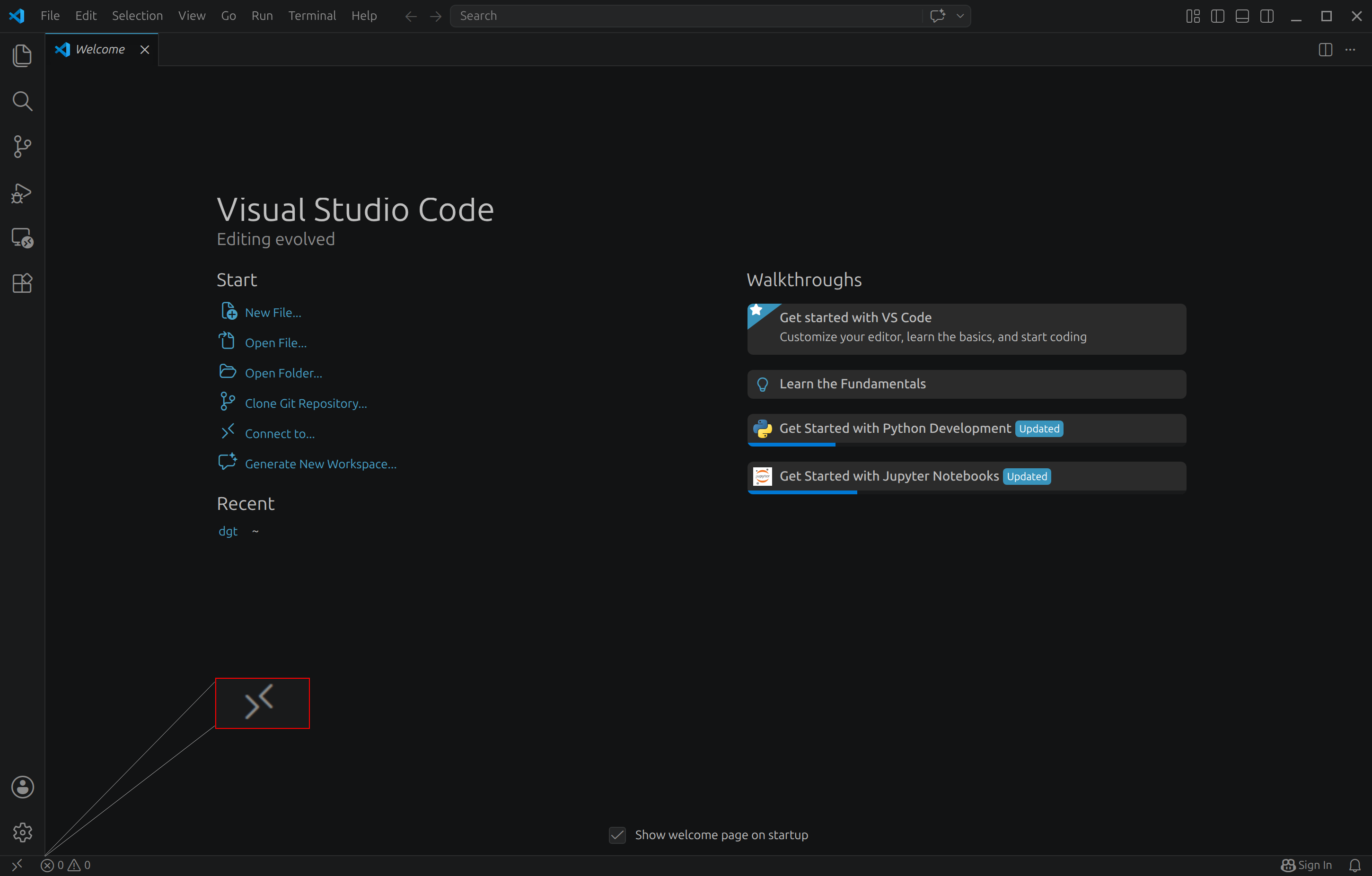
- On VS Code go to the bottom left corner and click on the Open a Remote Window button
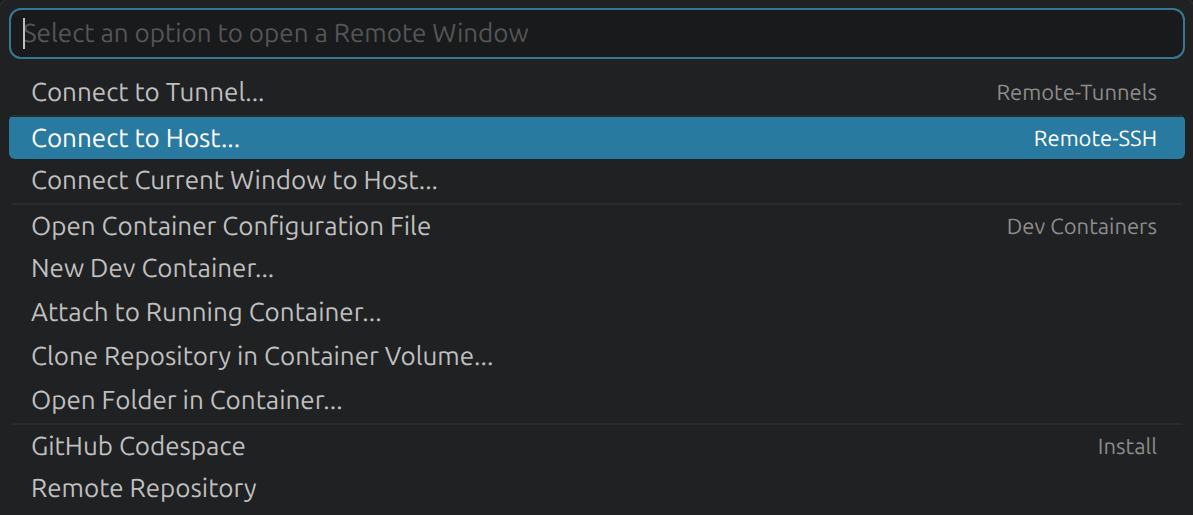
- Select the Connect to Host option
- Select Configure SSH Host

-
Select your ssh config file
- Linux: typically
/home/<user>/.ssh/config - Windows: typically
C:\Users\<user>\.ssh\config
Make sure your config file is in the same folder as your SSH keys.
- Linux: typically
-
Add the following block to the config file, with your respective username:
-
Save the config file
2. Connect to Remote
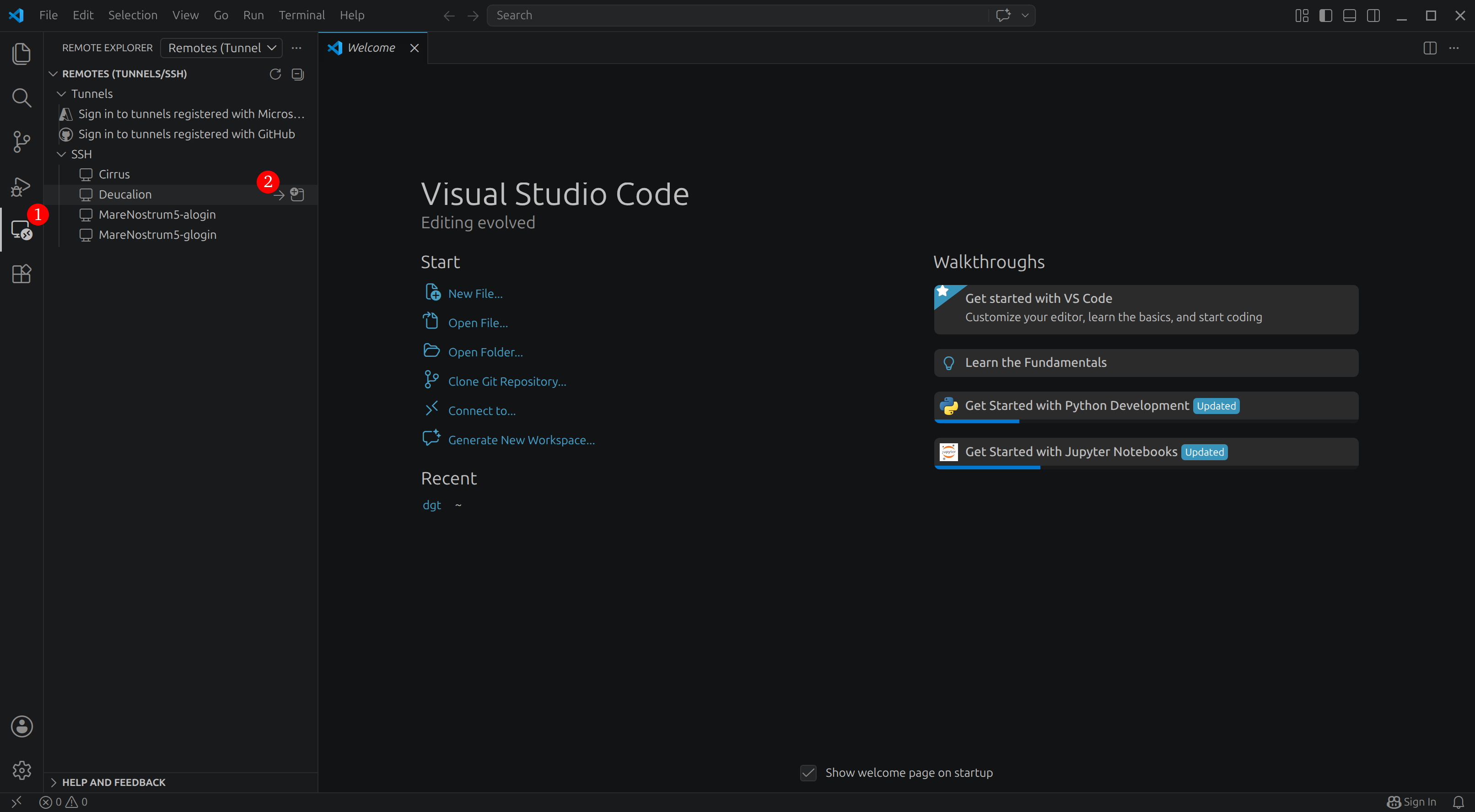
- Click on the Remote Explorer icon on VS Code's sidebar
-
Find Deucalion/MareNostrum5 under the SSH tab and click on the arrow that says Connect in Current Window
- If prompted, select Linux as the platform of the remote host
- Wait for VS Code to download VS Code Server
- Check the bar on VS Code bottom left corner to monitor the status of the connection
-
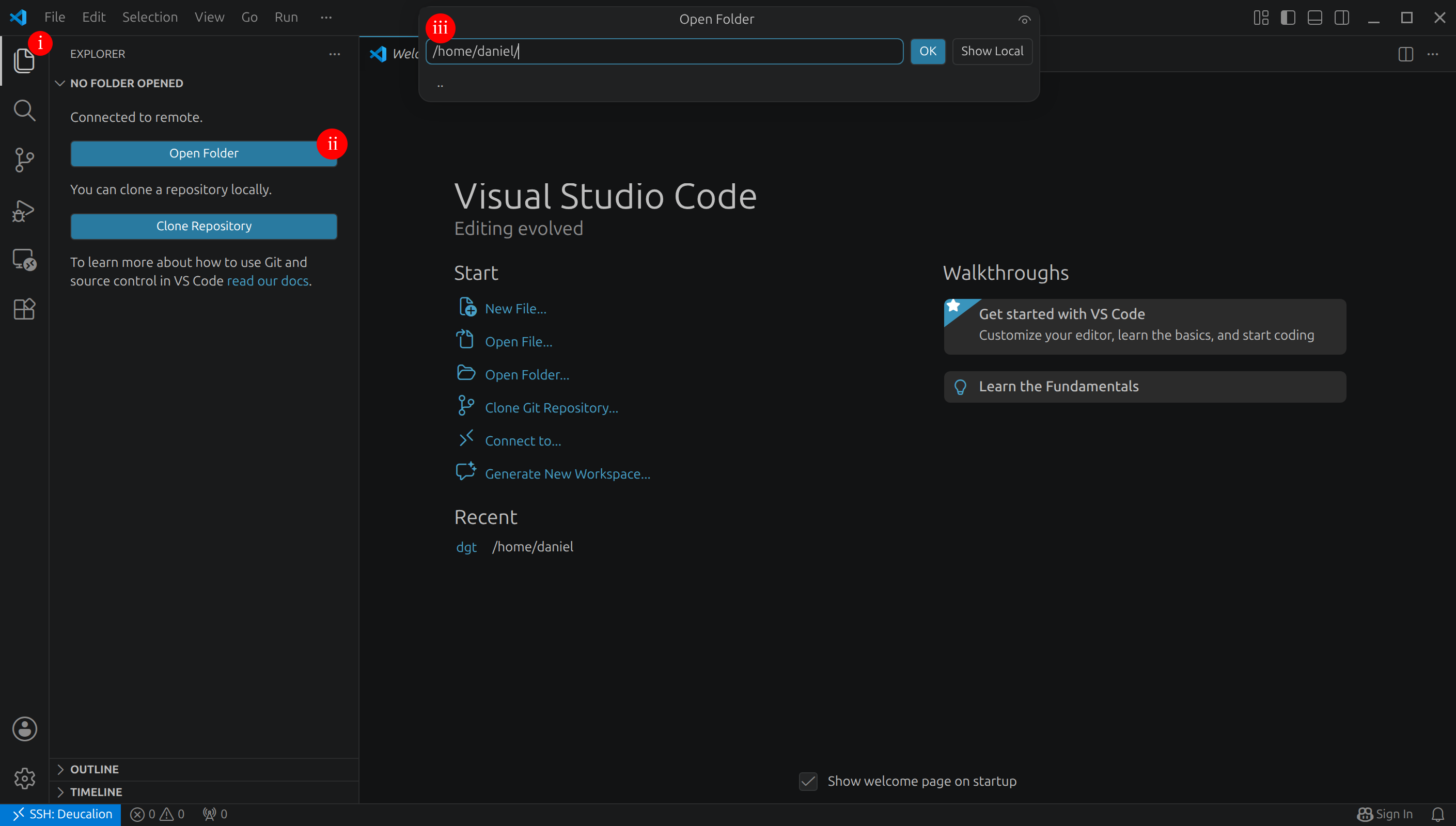
Once the connection is established:
- Go to the Explorer (i)
- Click on Open Folder (ii)
- Browse to your workspace on Deucalion/MN5 - open your
homeorprojectsfolder (iii)
You can also open a terminal on this session, which will be the equivalent of opening a terminal on Deucalion/MN5.