Running Jobs
Slurm
Slurm is a workload manager and job scheduler typically used in HPC systems to coordinate how computing resources are shared among users. It queues submitted tasks, allocates the necessary compute nodes to handle them and manages the execution and monitoring of those jobs.
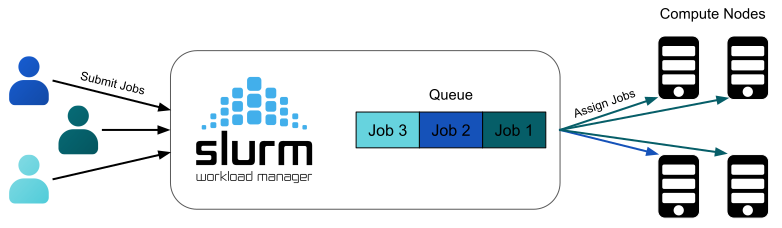
Do not run jobs on the login nodes. Use Slurm to submit your jobs to the compute nodes.
Submitting a job
Jobs should be submitted using the sbatch command and the proper job directives.
Example of parameters you can use with sbatch:
-J, --job-name={name}
-q, --qos={name}
-p, --partition={name}

-t, --time={time}
-n, --ntasks={number}
-c, --cpus-per-task={number}
-N, --nodes={number}
Note
Job directives can be defined after the sbatch command (e.g. sbatch -A <project_name> -n 1 my_job.sh) or inside the bash script.
Job Directives
Job directives are options that define the job, such as user account, resources, run time, etc. They are specified in the first lines of the batch script.
Here is an example of a batch script (my_job.sh) for Deucalion and MN5.
#!/bin/bash
#SBATCH --job-name=exampleJob
#SBATCH --partition=examplePartition
#SBATCH --account=exampleAccount
#SBATCH --time=02:00:00
#SBATCH --nodes=1
#SBATCH --ntasks=1
#SBATCH --cpus-per-task=1
#SBATCH --mem=2G

python my_python_script.py
Line by line breakdown
Each line in this batch script corresponds to a specific instruction:
#!/bin/bash- Tells the operating system to use the Bash interpreter to execute the rest of the file.
#SBATCH --partition=examplePartition- Instructs the SLURM scheduler to submit this job to a specific queue (partition) named
examplePartition.
- Instructs the SLURM scheduler to submit this job to a specific queue (partition) named
#SBATCH --account account-name- Specifies the billing account or project group (
account-name) that should be charged for the compute resources used by this job.
- Specifies the billing account or project group (
#SBATCH --time=00:10:00- Sets the maximum runtime limit for the job to 10 minutes (HH:MM:SS). If the job runs longer, SLURM will terminate it.
#SBATCH --nodes=1- Requests 1 compute node (a single physical machine within the cluster) to run the job.
#SBATCH --ntasks=1- Specifies the number of process instances for the job.
#SBATCH --cpus-per-task=1- Specifies the number of cpus per task.
#SBATCH --mem=2G- Specifies the memory required per node.
python my_python_script.py- Uses Python to run the
my_python_script.py
- Uses Python to run the
#!/bin/bash
#SBATCH --job-name=exampleJob
#SBATCH --qos=exampleQueue
#SBATCH --account=exampleAccount
#SBATCH --time=02:00:00
#SBATCH --nodes=1
#SBATCH --ntasks=1
#SBATCH --cpus-per-task=1
#SBATCH --mem=2G


python my_python_script.py
Line by line breakdown
Each line in this batch script corresponds to a specific instruction:
#!/bin/bash- Tells the operating system to use the Bash interpreter to execute the rest of the file.
#SBATCH --qos=exampleQueue- Instructs the SLURM scheduler to submit this job to a specific queue (partition) named
exampleQueue.
- Instructs the SLURM scheduler to submit this job to a specific queue (partition) named
#SBATCH --account account-name- Specifies the billing account or project group (
account-name) that should be charged for the compute resources used by this job.
- Specifies the billing account or project group (
#SBATCH --time=00:10:00- Sets the maximum runtime limit for the job to 10 minutes (HH:MM:SS). If the job runs longer, SLURM will terminate it.
#SBATCH --nodes=1- Requests 1 compute node (a single physical machine within the cluster) to run the job.
#SBATCH --ntasks=1- Specifies the number of process instances for the job.
#SBATCH --cpus-per-task=1- Specifies the number of cpus per task.
#SBATCH --mem=2G- Specifies the memory required per node.
python my_python_script.py- Uses Python to run the
my_python_script.py
- Uses Python to run the
Account
The --account flag specifies the project or group to which the job's resource consumption is attributed.
On Deucalion, you can check your accounts with billing and a similar table to this will appear:
Partitions / Queues
Selecting the correct partition ensures the job is routed to the specific hardware it requires, such as GPUs or high-memory nodes.
List of available partitions (Deucalion) and Queues (MN5)
To check the partitions available on Deucalion run sinfo.
| Partition | Architecture | Max Nodes | Time Limit | GPU |
|---|---|---|---|---|
| dev-arm | aarch64 | 2 | 4 hours | |
| normal-arm | aarch64 | 128 | 48 hours | |
| large-arm | aarch64 | 512 | 72 hours | |
| dev-x86 | x86_64 | 2 | 4 hours | |
| normal-x86 | x86_64 | 64 | 48 hours | |
| large-x86 | x86_64 | 128 | 72 hours | |
| dev-a100-40 | x86_64 | 1 | 4 hours | |
| normal-a100-40 | x86_64 | 4 | 48 hours | |
| dev-a100-80 | x86_64 | 1 | 4 hours | |
| normal-a100-80 | x86_64 | 4 | 48 hours |
To check the queues available on MN5 run bsc_queues.
GPP
| Queue | Max. number of nodes (cores) | Wallclock | Slurm QoS name |
|---|---|---|---|
| BSC | 125 (14,000) | 48h | gp_bsc |
| Data | 4 (448) | 72h | gp_data |
| Debug | 32 (3,584) | 2h | gp_debug |
| EuroHPC | 800 (89,600) | 72h | gp_ehpc |
| HBM | 50 (5,600) | 72h | gp_hbm |
| Interactive | 1 (32) | 2h | gp_interactive |
| RES Class A | 200 (22,400) | 72h | gp_resa |
| RES Class B | 200 (22,400) | 48h | gp_resb |
| RES Class C | 50 (5,600) | 24h | gp_resc |
| Training | 32 (3,584) | 48h | gp_training |
ACC (GPU)
| Queue | Max. number of nodes (cores) | Wallclock | Slurm QoS name |
|---|---|---|---|
| BSC | 25 (2,000) | 48h | acc_bsc |
| Debug | 8 (640) | 2h | acc_debug |
| EuroHPC | 100 (8,000) | 72h | acc_ehpc |
| Interactive | 1 (40) | 2h | acc_interactive |
| RES Class A | 100 (8,000) | 72h | acc_resa |
| RES Class B | 100 (8,000) | 48h | acc_resb |
| RES Class C | 10 (800) | 24h | acc_resc |
| Training | 4 (320) | 48h | acc_training |
Manage Jobs
Check Job Status
You can check the status of your submitted job by executing:
Job Status Codes
| Status | ID |
|---|---|
| Completed | CD |
| Completing | CG |
| Failed | F |
| Pending | PD |
| Running | R |
Cancel a Job
Use the command scancel to cancel a submitted job.
Track your outputs and errors
You can check in real-time your outputs (or errors) by executing the following command:
or
To exit just press ctrl + C
Interactive Jobs
In order to allocate an interactive job, use the salloc or srun commands.